Top Productivity Apps That Will Transform Your Daily Routine
Most people do not struggle with motivation. They struggle with structure. The right apps reduce friction, give you clear next steps, and surface the right tasks at the right time. Good tools do not add work. They make it easy to start and hard to forget what matters.
Before downloading new software, define the job you want the app to do. Do you need a place to capture tasks, a calendar that protects focus time, or a timer that keeps you honest? One app rarely covers everything well. A simple stack often works best: a task manager, a calendar, and a focus or time tool. Add notes and automation when you feel a repeat pain.
The picks below come from repeat testing across Android, iOS, Windows, and macOS. I focus on speed, sync reliability, and features that save time in daily use. Links are provided so you can check pricing and platform fit. Freemium plans cover most needs, and you can upgrade only if a paid feature earns its place.
Quick comparison of top picks
| Category | App | Best for | Platforms | Notable feature |
|---|---|---|---|---|
| Tasks | Todoist | Fast capture and smart scheduling | iOS, Android, Web, Win, Mac | Natural language dates |
| Tasks | Microsoft To Do | Simple lists with Microsoft 365 | iOS, Android, Web, Win, Mac | Outlook task sync |
| Calendar | Google Calendar | Shared calendars and integrations | iOS, Android, Web | Multiple calendar layers |
| Calendar | Fantastical | Power users on Apple devices | iOS, Mac | Natural language input |
| Focus | Forest | Reducing phone distractions | iOS, Android | App blocking while timer runs |
| Time tracking | Toggl Track | Lightweight time logs | iOS, Android, Web, Win, Mac | One-click timers and reports |
| Notes | Obsidian | Linked notes and knowledge | iOS, Android, Win, Mac | Local Markdown vault |
| Automation | Zapier | Connecting apps without code | Web | Multi-step workflows |
| Spark | Smart triage and quick replies | iOS, Android, Win, Mac | Priority inbox |
Task and to-do managers that keep you moving
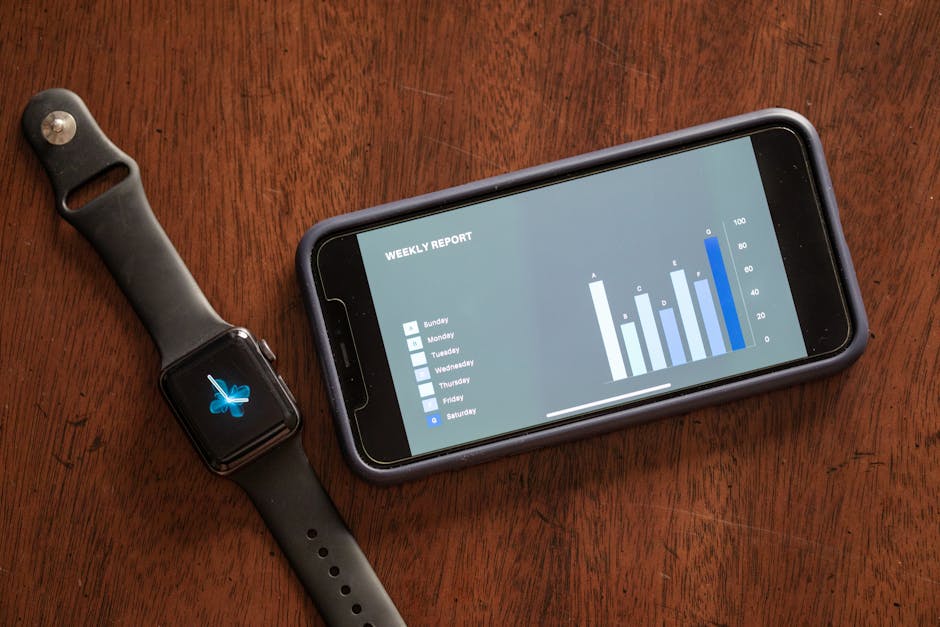
A strong task app lowers the cost of capture and makes review painless. Todoist stands out because you can type “Pay rent every month on the 1st” and it sets a repeating task with the right date. Labels and filters help you see a small set of tasks by context, such as “phone calls” or “errands.” The Today and Upcoming views prevent long lists from turning into noise. In daily use, quick add from mobile and desktop is the feature that saves the most time.
Microsoft To Do is a good pick if you live in Outlook. Tasks created from flagged emails show up in To Do with zero setup. The My Day view supports a light daily plan without heavy project structure. It handles shared lists well for households or small teams. If you want the basics and do not need advanced filters, this is enough.
Project boards help when you prefer a visual snapshot. Trello uses cards and lists to map stages like “Backlog,” “Doing,” and “Done.” It shines for workflows and shared projects. You can attach files, add checklists, and move cards with one drag. For larger teams that need assignments and timelines, Asana adds workload views, templates, and solid automation. For solo users, Asana can feel heavy, so start with a simple board and scale only if needed.
Some people prefer one workspace to handle notes, tasks, and light databases. Notion can do that. You can create a tasks database with views by status, person, or due date. It is flexible, but setup takes time. Templates help, yet the temptation to tweak can slow you down. If you enjoy building your own system and want all-in-one, Notion can replace a separate to-do app. If you want speed out of the box, stay with a focused task tool.
Calendars and scheduling that protect focus
A calendar is more than a grid of boxes. It is a map of attention. Put your deep work, meetings, and admin in blocks so you see tradeoffs. Google Calendar remains a strong base because sharing, color coding, and availability tools are simple. You can create multiple calendars, such as Work, Personal, and Training, then toggle them as needed. Adding conferencing links and locations reduces meeting friction.
Apple users who want speed can look at Fantastical. It parses text like “Meet Ana at Blue Bottle Tue 2 pm” into the right event in seconds. Interesting calendars let you add holidays and sports with one click if that helps your planning. The day ticker on iPhone makes it easy to scan the week. Price makes sense if you add features like scheduling links and tasks in calendar, but basic needs may be covered by Apple Calendar.
Sharing availability without back-and-forth emails saves time. Calendly handles that by syncing your calendars and letting others pick a slot from a page. You set buffers, meeting lengths, and limits per day. This cuts down on double bookings and manual follow-ups. If your company uses Microsoft 365, Outlook’s built-in scheduling with external guests might be enough for simple cases.
Time blocking helps if your to-do list keeps growing without progress. Put your top three tasks on the calendar for fixed periods. Protect those blocks by marking them busy. If someone asks for a meeting, you have a clear view of tradeoffs. You do not need special software for this. A clean calendar with color codes and clear names for events is often all it takes.
Focus and time tracking that measures what happens
To improve attention, you need a way to start quickly and stop when the work is done. A simple Pomodoro timer helps. Work for 25 minutes, break for 5, repeat. Apps like Forest make it harder to pick up your phone mid-session by blocking selected apps. If you like audio, Focus@Will offers sound tracks tuned for focus. Pick one tool and make it a habit. Consistency beats features.
Tracking time gives you facts. You learn how long tasks actually take and what eats your day. Toggl Track makes logging easy with one-click timers and clear reports. Projects and tags keep data tidy. If you need a free team option, Clockify covers basic tracking and exports. You do not need to track every minute. Track your high-value blocks and recurring admin to spot trends.
Distraction blocking works best when you set clear rules. Freedom can block websites and apps across devices on schedules. Set sessions during deep work or at night to protect sleep. This is not about willpower. It is about default settings that match your goals. Make the easier action the right one. Keep a short whitelist for research and tools you need for work.
When picking a focus tool, look for simple start, clear stats, and light friction to keep logging.
- Quick start or hotkeys so you begin a session without hunting through menus
- Basic reports that show time by project or tag
- Sync across phone and desktop
- Optional blocks for the top five sites that break your flow
Notes and knowledge you can actually use
Notes only help if you can find them fast. Obsidian stores Markdown files locally, which keeps sync under your control and makes export simple. Backlinks and tags help connect meeting notes to projects and ideas. You can keep it basic with a few folders and a daily note. The plug-in system adds power if you want it later.
If you prefer a classic notebook with web clipper and templates, Evernote is still a solid choice. It handles PDFs, images, and search inside attachments. Meeting note templates with action items help you move from capture to tasks. Verify that the plan you pick includes the storage you need. Heavy attachments can push you to a paid tier.
OneNote fits well in a Microsoft setup. The freeform canvas works for whiteboard-style thinking. It syncs through OneDrive and integrates with Outlook. You can drag emails into a page or print to OneNote for archives. If you take notes during calls, the section and page model keeps things tidy over time.
For shared documents and quick checklists, cloud storage matters. Google Drive is simple for Docs and Sheets. Dropbox is strong for file sync and request links. Put active project notes in one folder with a clear naming scheme. Keep a separate archive so search stays fast and results stay relevant.
Automation and integrations that remove repetitive steps
Small automations add up. If you send the same follow-up after meetings, let a tool do it. If you move notes to a project folder every week, set a rule. Zapier connects apps without code. A simple example is creating a Todoist task when a new email hits a label in Gmail. Another is saving meeting recordings to a Drive folder and posting the link to a team chat. Keep your first automations short and easy to debug.
IFTTT is helpful for lighter personal recipes. You can mute your phone at bedtime, log location-based arrivals to a spreadsheet, or copy new calendar events to a second calendar. Home use cases like reminders when laundry finishes or when the forecast shows rain can clear mental clutter.
On Apple devices, Shortcuts can speed common actions. One tap can start a focus timer, turn on Do Not Disturb, open a writing app, and start a playlist. On Windows and macOS, launcher tools like Alfred and Raycast give you quick actions from These are not flashy changes. They save seconds many times a day.
Build automations after you know your pain points. Track two weeks of work. Make a list of tasks you repeat often. Automate the ones that take the most time or cause the most errors. Review automations monthly. Remove ones you no longer use so your system stays simple.
Email and communications under control
Email is not a task manager. Process messages into tasks and events, then get out. If you use Gmail, filters and labels do most of the work. Send newsletters to a Read Later label so they do not interrupt your day. Star items that need a response, then clear the star once done. If you want a client with triage features, Spark offers a priority inbox and quick templates.
Outlook users can convert emails to tasks and calendar items with a click. This helps if your team uses shared mailboxes or meeting invites all day. Rules move routine messages to folders so your main inbox stays small. Keep notifications off for most mail. Turn them on only for VIP senders or during a support shift.
For threaded team work, chat apps can help and hurt. Channels for projects reduce email. Noise grows when everything becomes a channel. Use a naming standard and archive channels when projects end. Pin decisions and key docs. If a chat runs long, move to a quick call and write a one-paragraph summary.
Set two or three daily windows for messages. Morning, mid afternoon, and end of day often work. Protect deep work by closing mail and chat outside those windows. If someone truly needs you, they can call. Most messages can wait an hour.
Putting it together: a simple daily stack
Start with the minimum set. Use a task app, a calendar, and one focus tool for four weeks. For tasks, a clean setup might be Inbox, Next, Waiting, and Someday lists in Todoist or To Do. For calendar, block two deep work periods and one admin block each day. For focus, run a 25 or 50 minute timer for each deep block. Review on Friday. Keep what helped and drop what did not.
When work expands, add layers. Use Trello or Asana for projects with many steps or a team. Bring in an automation if you keep moving the same items by hand. Add time tracking for a month if you need proof of where time goes. Store reference notes in Obsidian or OneNote so you stop hunting across apps. Each layer should answer a clear need.
Watch for tool creep. New apps feel helpful for a week and then add overhead. Check your phone and desktop for icons you have not opened in a month. Remove them. Fewer tools used well beat many tools used sometimes. The best app is the one you will open daily without hesitation.
Small improvements compound. Natural language task entry saves seconds on every task. Calendar links remove three or four emails per meeting. A focus timer cuts one or two context switches each hour. Over a quarter, that is hours returned to work that matters. Start with one change today and give it time to stick.
Pick one app from each category listed above and set it up simply. Turn on only the features you need right now. Write down your workflow on a single page so you remember how pieces fit. When you feel friction, adjust the workflow before you add a new tool. Productivity comes from clear choices, not from a large toolbox.