The Dangers of Public WiFi and How to Stay Secure
Open WiFi at a café or airport feels convenient, but it often trades safety for speed. Many hotspots do not encrypt traffic, and some are set up by attackers who want your data. If you sign in to email, shop online, or log in to social media on an unsafe network, you can expose passwords, cookies, and personal details. With a few habits and the right tools, you can cut most of the risk while staying productive on the go.
Why public WiFi is risky
Most public hotspots are either completely open or use weak protection. On an open network, anyone nearby can capture unencrypted data moving over the air. Even if you use sites with HTTPS, attackers can still try to trick you with fake login pages, expired certificates, or misleading pop-ups. Some hotspots route traffic through equipment that can inject ads or track you. Others are outright fake, set up to look like a real café or airport name to lure you in.
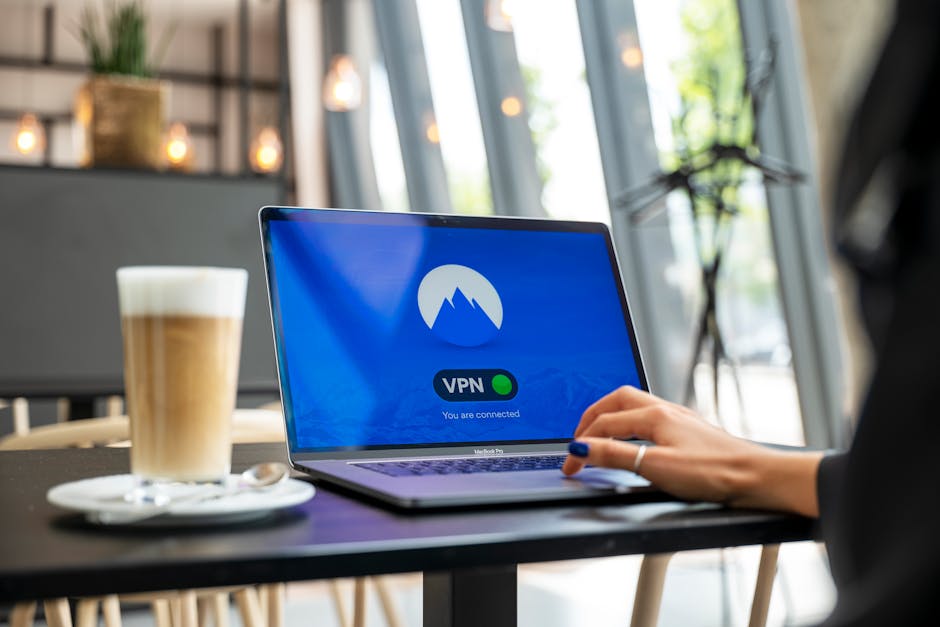
Attackers target what people do most. That includes checking email, logging in to banking, and browsing social media. If they can steal a session cookie, they might not need your password to get in. If they can push you to install a fake update, they can plant malware. Weak signage and captive portals can also confuse users into sharing data they would never hand over in a different setting.
| Attack type | What you might see | Data at risk | Quick defense |
|---|---|---|---|
| Evil twin hotspot | Two networks with the same name | Logins, cookies, browsing | Confirm with staff, avoid auto-join |
| Man-in-the-middle | Certificate warnings or odd redirects | Credentials, messages | Use a VPN, leave if warnings appear |
| SSL stripping | HTTP pages when you expected HTTPS | Form data, personal info | Force HTTPS-only mode in your browser |
| Malicious captive portal | Portal asks for passwords or downloads | Account access, device compromise | Only share minimal info, never install from portals |
| Malware injection | Fake update prompts and pop-ups | Device control, files | Update only via system settings or app stores |
How attackers get access
Fake hotspots are common. An attacker names a device after a nearby coffee shop and waits. Phones and laptops that auto-join similar names connect without the user noticing. Once connected, the attacker controls where your browser goes next. That can include a fake login page or a site that tries to grab session cookies.
Rogue access points can also sit between you and the real network. The attacker forwards traffic so everything looks normal while copying data. Some push downgrade attacks that try to force unencrypted connections. Others intercept DNS to send you to a fake version of a site. Every extra prompt, warning, or redirect on a public network deserves caution.
Safe habits that cut most of the risk
Security on public WiFi is about layers. You do not need to be a pro to improve your odds. Focus on changing defaults that leak data and use tools that protect sessions.
- Prefer your phone’s hotspot when handling banking or work logins. Mobile data reduces shared risk.
- Use a reputable VPN on laptops and phones to encrypt traffic leaving your device.
- Turn on HTTPS-only mode in your browser and watch for certificate warnings.
- Disable auto-join for public networks and forget networks you no longer use.
- Keep systems and apps updated through official stores, not pop-ups.
- Use multi-factor authentication on important accounts to blunt password theft.
- Disable file sharing and AirDrop-like features in public places.
- Turn off Bluetooth and WiFi when not needed to limit exposure.
- Use a password manager to avoid typing credentials on risky networks.
- Set up a device firewall and block inbound connections on untrusted networks.
What to avoid on public WiFi
Do not install anything from a captive portal or a pop-up. Do not approve certificate exceptions for a site you trust. Do not enter passwords on HTTP pages. Skip sensitive work if something feels off, like slow logins, repeated redirects, or warnings that appear more than once.
How to check a hotspot before you connect
Ask staff for the exact network name. Look for a sign at the counter and match it character for character. If you see duplicates, assume the risk is higher. If a captive portal appears, share only what is required to get online. A request for your email is common. A request for your email and password is not. If the portal asks you to install anything, cancel and disconnect.
HTTPS is good, but not perfect
HTTPS protects data between your device and the site. It does not stop a fake hotspot from sending you to a fake site with a convincing address that is one letter off. It also does not stop malware that runs on your device. Treat HTTPS as one layer. Combine it with a VPN and strong account security.
VPNs explained in plain terms
A VPN creates an encrypted tunnel from your device to a server run by the provider. Anyone snooping on the local network sees encrypted traffic that they cannot read. This is helpful on open hotspots where over-the-air data would otherwise be exposed. A VPN does not make you anonymous to the sites you visit, and it does not fix malware on your device. You still need safe browsing habits and updates.
Pick a provider with a track record and clear policies. Avoid free services that throttle speed or collect data. Look for features like a kill switch that blocks traffic if the VPN drops. On mobile, confirm the VPN stays connected when the device sleeps or switches networks.
Extra protection on phones and laptops
Modern systems include features that help on public networks. Set your WiFi network type to public or untrusted, which blocks device discovery and file sharing. Enable DNS over HTTPS in your browser to reduce tampering with lookups. Turn on automatic updates so you are not tempted by any download prompts that appear on a hotspot.
Two-factor authentication reduces damage if a password leaks. Authenticator apps are safer than SMS when you can use them. For email, enable security alerts. Many providers flag logins from new locations or devices.
What to do if you think you were exposed
Change passwords for any accounts you used on the hotspot, starting with email and financial services. Sign out of all sessions from your account security pages. Review recent logins for unknown devices or locations. Run a malware scan with trusted tools. If an employer manages your device, report the event so they can check logs and reset tokens as needed.
Tips for cafés, libraries, and hotels
Owners can reduce risk for guests by posting the exact SSID and using a strong password that changes regularly. Segment the guest network from internal systems. Enable client isolation so devices on the guest network cannot talk to each other. Display simple safety tips on the captive portal, and never ask for more data than required to grant access.
Common myths to skip
Incognito mode does not secure your connection. It only limits what the browser stores locally. A VPN is not a cure-all. It can hide traffic from local snoops, but it does not protect against phishing or fake portals. A padlock icon helps, but it is not proof you are on the right site. Check the address and certificate details if a page looks suspicious.
Quick links to account security hubs
When you finish a session on public WiFi, review your account security settings. You can find them on official sites like apple.com, google.com, and microsoft.com. Look for options to sign out of other devices, enable two-factor authentication, and view recent activity.
Public WiFi can be safe enough for light browsing when you use the right habits. Treat every hotspot as untrusted. Confirm the network name, avoid sensitive tasks when possible, and use a VPN for extra cover. Keep your browser strict about HTTPS and block risky features like file sharing in public places.
Security is not about one tool. It is about stacking small defenses that work together. With a few changes to settings and behavior, you can enjoy the convenience of free WiFi without handing over