Understanding Two Factor Authentication and Why You Need It
Passwords leak, get reused, and are easy to guess. Two factor authentication adds a second check that proves it is you. When you turn it on, a thief who learns your password still cannot sign in. That one change blocks many common attacks and is now a baseline step for protecting email, banking, social media, and cloud storage.
What two factor authentication means
Two factor authentication, often called 2FA or multi-factor authentication, asks for two different types of proof. The first factor is something you know, like a password. The second factor is something you have or something you are. This can be a code from an app, a hardware key you plug in, a push prompt you approve on your phone, or a biometric check such as Face ID. Using two factors makes account takeover much harder.
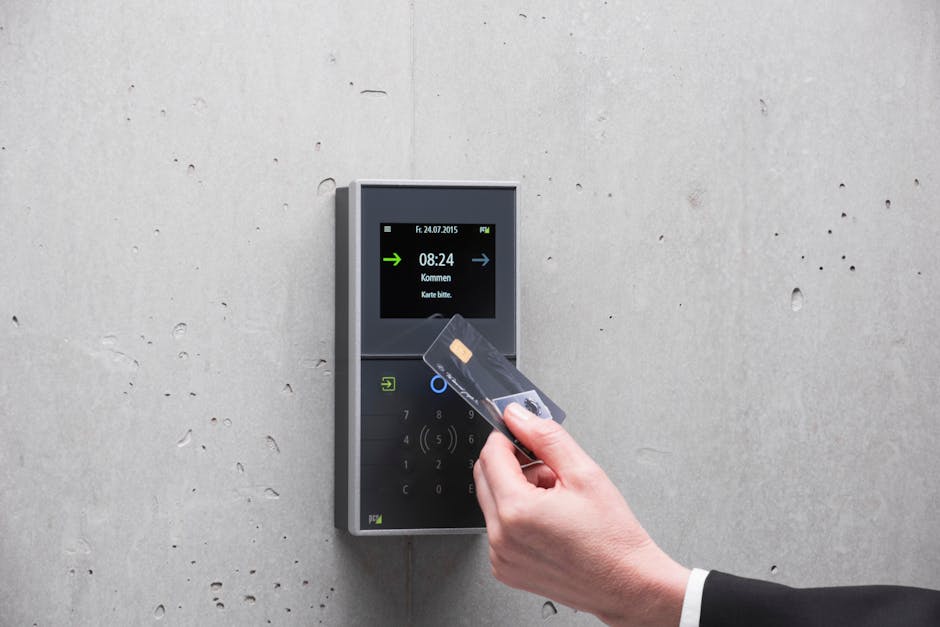
Common 2FA methods compared
| Method | How it works | Pros | Cons | Phishing resistant? | Good for |
|---|---|---|---|---|---|
| SMS codes | Site texts a 6-digit code to your phone number | Easy to set up, works on any phone | Vulnerable to SIM swap and phishing, relies on cell service | No | Basic protection when nothing else is available |
| Authenticator app (TOTP) | Time-based codes from an app like Google Authenticator or Authy | Works offline, stronger than SMS, free | Phishable, phone loss without backups can lock you out | No | Email, social media, developer accounts |
| Push prompt | Approve a sign-in on your phone | Fast, no code typing | Can be tricked by “push fatigue” spam | No | Large services with strong app support |
| Hardware security key (FIDO2/WebAuthn) | Tap a USB/NFC key during sign-in | Stops phishing, device-bound, very strong | Costs money, need spares, small learning curve | Yes | Banking, admin accounts, high-value email |
| Passkeys | Built-in device authentication using biometrics or PIN | Phishing resistant, no codes, synced across devices | Still rolling out, cross-platform support varies | Yes | Everyday accounts where supported |
Why you need 2FA even if your password is “strong”
Data breaches expose passwords from other sites. Many people reuse them. Attackers run “credential stuffing,” where stolen email and password pairs are tried across popular services. Keyloggers and fake login pages can also capture a good password. 2FA forces an extra step the attacker does not have. That extra step blocks most mass attacks and many targeted ones.
Phishing and which methods resist it
Phishing tricks you into entering your password on a fake page. Some phishing kits now relay codes in real time. SMS codes and authenticator app codes can be stolen this way. Hardware keys and passkeys tie the sign-in to the real domain using public key cryptography. If the domain is wrong, This is why agencies like cisa.gov and standards bodies like nist.gov encourage phishing-resistant options when possible.
What to use for different risks
If you are protecting a personal email or social account, an authenticator app or passkey is a strong and practical choice. If you handle money, run a business, or manage admin access, use hardware security keys with a backup key. If a site only offers SMS, turn it on, but keep an eye out for better options in the settings.
Setup steps that work on most services
- Open your account’s security settings and find the 2FA or multi-factor section.
- Choose the strongest option offered. Prefer passkeys or hardware keys where supported. Next best is an authenticator app. Use SMS only if nothing else is available.
- Add at least two second factors if allowed, for example a passkey plus a hardware key, or an authenticator app plus backup codes.
- Store backup codes in a safe place that is not your email or notes app. A password manager works well.
- Test a fresh login on another device to confirm recovery options work.
How authenticator apps work and how to back them up
Authenticator apps generate new 6-digit codes every 30 seconds using a shared secret. During setup, you scan a QR code that loads that secret into the app. If you lose the phone and do not have backup codes or account transfer set up, you can get locked out. Many apps support encrypted cloud backup or device transfer. If you prefer not to use cloud backup, write down backup codes for each account and keep them offline.
Hardware keys, passkeys, and when to invest
Hardware security keys based on FIDO2 and WebAuthn stop phishing and do not rely on your phone number. Many people buy a two-pack, register both keys, and store one in a safe place. Keys can work over USB, NFC, or Bluetooth, which covers laptops and phones. Passkeys bring the same core technology into your devices. You sign in with Face ID, Touch ID, Windows Hello, or a device PIN. Many services let you create a passkey in seconds. Check the service’s help page or the FIDO Alliance site at fidoalliance.org for support details.
SMS risks and how to reduce them
SMS depends on your phone number, which can be hijacked through SIM swap fraud. Attackers trick or bribe a phone carrier to move your number to a new SIM. If you must use SMS, add a carrier PIN, lock your number when possible, and avoid posting your phone number publicly. Move to an app or key as soon as the service allows it.
Recovery matters as much as setup
When you add 2FA, also plan for device loss. Print or save backup codes. Add a second factor like a spare hardware key or a passkey on a second device you control. Keep your email secured with strong 2FA because it is the main recovery channel for many accounts. Review recovery email addresses and phone numbers and remove ones you no longer use.
Using a password manager with 2FA
A password manager helps you create unique passwords, which pairs well with 2FA. Many managers can store 2FA codes for convenience. If you choose that setup, secure the manager with a strong master password and a phishing-resistant factor if supported. Some people prefer to keep 2FA codes in a separate authenticator app to reduce single points of failure. Both approaches work when you keep good backups.
What to do when a site does not support 2FA
Some smaller services still lack 2FA. Use a unique, long password and do not reuse it anywhere else. Limit what data you store there. Check settings later because support often gets added. If the account holds sensitive data and has no 2FA, consider moving to a service that offers stronger protection.
FAQs in plain terms
Does 2FA stop every attack? No. It raises the bar and blocks the most common attacks. Strong methods like hardware keys and passkeys also stop most phishing. Can 2FA be bypassed? Yes, with targeted tricks or malware on your device. Keeping devices updated and being careful with links still matters. Is 2FA hard to use? The first setup takes a few minutes. After that, a quick tap or code is routine. Is it worth it? Yes. One short step can save you hours or days of account recovery and damage control.
The best move you can make for your security this week is to turn on 2FA for your email and bank, then add it to your social and cloud accounts. Start with the strongest method you can use, add a backup, and store recovery codes safely. If a service supports passkeys or hardware keys, use them. If not, an authenticator app is still strong. Small steps compound. Your accounts become much harder targets, and you keep control of the things that matter.
If you have already set up 2FA, take ten minutes to review recovery options and add a second factor. That simple maintenance prevents lockouts and gives you confidence when a security alert pops up. Security is not about fear. It is about building layers that work quietly in the background while you get on with your day.
References: cisa.gov, nist.gov, fidoalliance.org