Apps That Help You Track and Control Screen Time
Screen time adds up fast. Phones and laptops are where we work, study, talk to friends, and pass time. Without guardrails, hours slip by and attention gets scattered. Tracking helps you see patterns, and controls help you set limits that match your goals, not someone else’s. The right app does both, with clear reports and simple ways to block distractions when you need focus or rest.
There is no single best app for everyone. Some people want built-in tools that work across iPhone, iPad, and Mac. Others need cross-platform blocking for work sessions, or stronger parental features for kids and teens. The options below cover the major built-in choices and respected third-party apps, along with setup tips and privacy notes that matter when you give an app access to your usage data.
What to track and why it matters
Most screen time tools measure total time on device, time by app, and pickups. The useful ones go a bit further. Category breakdowns show where attention goes, like social, entertainment, or productivity. Daily averages smooth out spikes, so you see the real habit, not yesterday’s crunch. Trends by day of week help you plan, such as limiting the apps that drain your evenings on weekdays and easing up on weekends.
Tracking is not about guilt. It is about feedback. If you notice a messaging app steals 20 short sessions a day, a small change like batching messages can return a chunk of focus. If YouTube runs long after 10 p.m., a downtime rule can protect sleep. I set an app timer on social apps at 30 minutes. The first week it felt tight. By week two I noticed I was opening the apps with a purpose, not out of reflex. The number on the report is less important than the behavior it nudges.
Meaningful metrics are timely and specific. Alerts that fire when you hit a limit during the day work better than a weekly summary that arrives when habits are already set. Look for apps that let you tune nudges. A gentle reminder at 25 minutes may be all you need. A hard block for certain hours may be better when you study or work.
Built-in options: iOS Screen Time and Android Digital Wellbeing
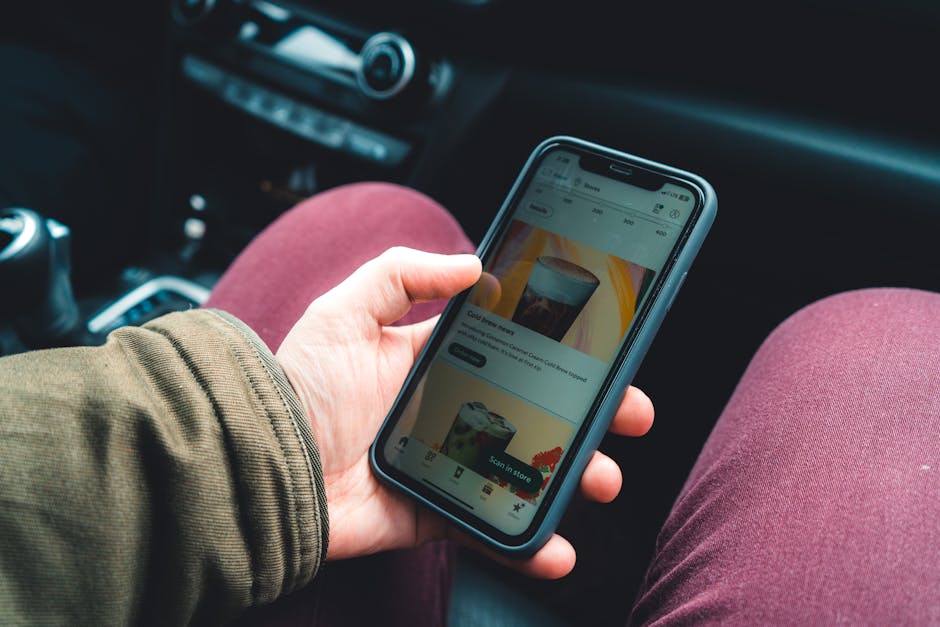
iPhone, iPad, and Mac users get Screen Time baked into settings. It tracks usage by app and category, shows daily and weekly trends, and lets you set App Limits and Downtime. Downtime mutes access to selected apps during the hours you pick, with urgent calls and specific exceptions allowed. You can set a passcode so you do not bypass your own rules too easily. If you use multiple Apple devices on the same Apple ID, Screen Time syncs across them, which helps you avoid moving from phone to tablet when a limit hits. Apple also includes Content & Privacy Restrictions and Shared features for families, so parents can approve app downloads and set limits for a child’s device. Details and support live on apple.com.
Android’s Digital Wellbeing covers many of the same bases. It shows daily summaries, app timers, and Bedtime mode. Focus mode pauses selected apps during work periods, which removes badges and notifications until you turn it off. App timers are per app and reset daily, which keeps the rule simple. On Pixel phones, features such as Heads Up and Flip to Shhh reduce interruptions. Many Android phone makers include their own dashboards, but Google’s base tools are reliable and improve with system updates. You can read about them on android.com.
Families on Android often use Google’s Family Link to set limits for kids and teens, manage app installs, set device bedtime, and see basic activity from a parent account. It works across Chromebooks too. Parents should still talk through the rules and explain why limits exist. I have seen better results when a teen helps set the first set of app timers and agrees to revisit them after two weeks. More information about Family Link sits on google.com.
Third‑party apps for stronger focus and cross‑platform control
Built-in tools work well for many people. Some workflows need more. If you want cross-device blocking that covers iOS, Android, Windows, and macOS, Freedom is a popular pick. You create blocklists of distracting sites and apps, schedule sessions, or start one on demand. Locked mode makes it hard to quit mid-session. I use Freedom when writing because a 50-minute block that includes news and social cuts the urge to tab-surf. The setup takes a few minutes since you install a helper on each device, but once done, the same session runs everywhere. Details are on freedom.to.
RescueTime focuses on time tracking plus active window monitoring on desktop to classify work vs distraction. Its Assistant nudges you when you drift and can trigger Focus Sessions that block common culprits. The weekly review highlights which apps consumed focus time and which ones broke it. If your goal is to understand work patterns and protect deep work, this blend of analytics and automated focus helps. The company explains features and privacy on rescuetime.com.
Forest uses a simple idea to keep you off the phone. You start a focus timer and grow a virtual tree. If you exit the app to open something blocked, the tree withers. It sounds playful, yet the visible streaks reduce the “just for a second” checks. The app pairs well with a stricter blocker on desktop. Opal offers another angle on iOS by using a local VPN profile to filter traffic and enforce focus sessions with schedules and automation. Both options aim to make the rule effortless once a session starts, which is often the difference between good intent and follow-through.
No third-party app can force a change if you keep hitting “Allow” or uninstall it. Strong tools make that harder during sessions and reduce friction to start a session when you need it. Look for quick actions like a menu bar start button, home screen widgets, and calendar-linked schedules. The fewer taps, the more likely you are to use it when it counts.
Setting up limits that stick
Start with a small number of rules you will keep. One daily limit for the app that eats the most time, one downtime block for sleep, and one focus block for work or study hours. Review the data after a week and adjust. If you hit the limit every day by noon, either raise it a bit or add a mid-afternoon block to catch the next burst. If you never hit it, lower it until you feel light tension but not stress.
Use exceptions with care. Allow calls and messages from your close circle during downtime. Keep navigation and health apps available. Avoid adding “just in case” exceptions for entertainment apps. That habit turns a rule into a suggestion. On iPhone, set App Limits by category when the single worst app rotates by season. On Android, pair Focus mode with a work profile if your phone supports it, so work apps stay up while personal ones pause.
Link focus to triggers you already use. If your calendar shows a study block, have a focus session start five minutes before. If you plug in your laptop at a desk, auto-start a 50-minute block. When I tied Freedom sessions to my first calendar event each morning, I saved a few decision points, which reduced the chance I would skip it.
Talk about limits with family or housemates if shared devices are in play. A short check-in each week keeps the system honest and removes the surprise of a blocked app during a shared movie night. Teens respond better when they help set the first numbers and know when they can ask for a change.
Privacy, data, and what to check before you install
Screen time apps need usage data to work. Some process data on device, others sync to cloud servers for reports and cross-device control. Read the privacy policy before you commit. Check whether the company sells data, uses it to train models, or keeps only the minimum needed. Apple’s Screen Time and Android’s Digital Wellbeing run at the system level, which helps with accuracy and local control. Third-party tools vary. Choose apps that state what they collect, how long they retain it, and how you can delete it.
On iOS, network-based blockers use a local VPN profile. This does not route traffic to a public VPN service in most focus apps, but it does grant wide permissions. Stick with vendors that explain their design and pass App Store review history. On Android and desktop, usage access and accessibility permissions carry similar weight. Grant only what is needed. Review permissions every few months.
Price is part of trust too. A clear subscription with a cancel-anytime policy beats a free app with vague data terms. Many paid apps offer trials. Use the trial to run your normal week and see if reports match your sense of time. If numbers look off, either adjust categories or pick another tool. Accuracy builds buy-in, and buy-in keeps you using the system.
Small frictions can break the habit. If an app nags too much or makes core apps unstable, do not push through. Switch the feature off or try a different tool. The goal is a setup you can live with for months, not a perfect plan you drop after three days.
Healthy screen time is not about perfection. It is about matching time with intent, keeping sleep and work safe from constant pulls, and leaving room for fun without endless scrolls. Start with the built-in tools you already have, add a focused blocker if you need more control, and review your setup once a month. Simple rules that fit your life beat complex rules you ignore.
References: apple.com, android.com, rescuetime.com