How to Stop Apps from Tracking Your Location
Apps track location to power maps, weather alerts, and ride sharing. Many also use it for targeted ads, analytics, and profiling. Location can reveal where you live and work, your routines, and even sensitive visits. You do not need to accept constant tracking to use your phone well. You can keep useful features and still keep more privacy.
Control comes down to permissions, system settings, and a few habits. The goal is to give location only when needed, reduce background access, use approximate location where possible, and switch off silent scanning that can expose your whereabouts. Small adjustments on iOS, Android, and your browsers add up to a big drop in data collection.
How Apps Track You And Why It Keeps Happening
Location data does not come from GPS alone. Phones combine GPS, nearby Wi‑Fi networks, Bluetooth beacons, and cell towers to estimate where you are. Browsers can read your IP address, which can point to a rough area even if you refuse GPS. Some apps ask for continuous access to run features that only need location in the moment. Others rely on background refresh to collect points through the day. When ad networks and data brokers enter the mix, your coordinates can be linked to an advertising ID or device traits to build a profile that follows you across apps.
Look for three patterns. The first is precise tracking that pins you to a building. The second is background access that logs movement when you are not using the app. The third is silent scanning, where Wi‑Fi and Bluetooth scanning stay on to speed up positioning and device discovery. All three are controllable on current versions of iOS and Android, and modern browsers give you site-by-site switches. I keep motion-heavy apps like maps on strict “while using” rules and turn off scanning that I do not need. That single habit change cut surprise prompts and stopped odd ad suggestions based on places I had only walked past.
iPhone and iPad: Tighten Location Without Breaking Apps
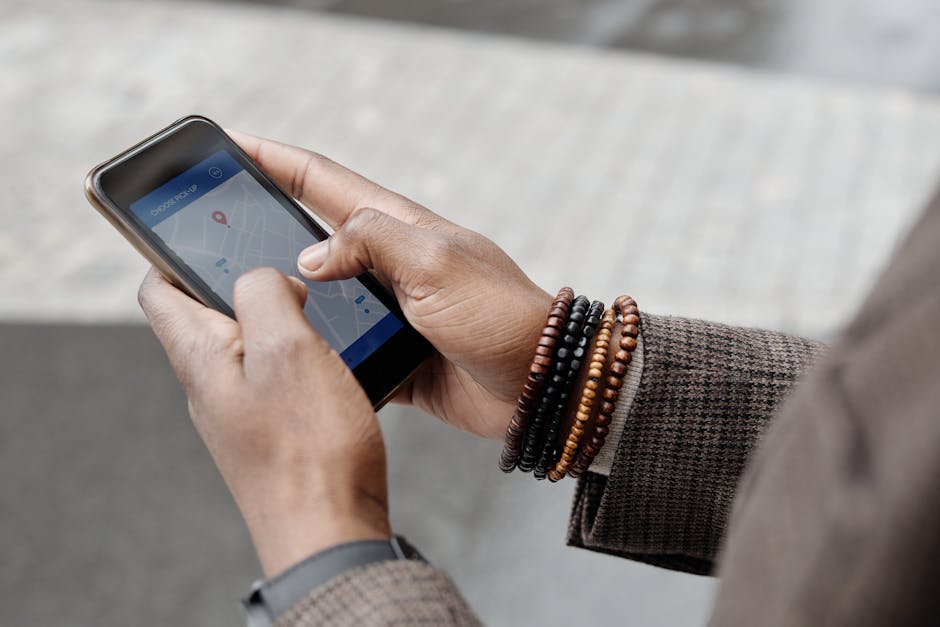
Start in Settings, then go to Privacy & Security and open Location Services. Check the master switch is on, because you want control per app rather than a blunt off. Tap each app and set access to Never, Ask Next Time Or When I Share, or While Using the App. Pick While Using for maps and ride share, and Ask Next Time for most others. Toggle Precise Location off for apps that do not need building-level accuracy. Keep it on for turn-by-turn navigation or emergency services.
Reduce background logging by reviewing apps set to Always. Few apps truly need it. Delivery apps can work with While Using combined with notifications. Fitness apps that auto-track outdoor runs may need Always, though many now support “while using” with a manual start. If an app insists on Always without a clear reason, switch it off and test the features you care about.
Open System Services inside Location Services to review Apple-specific features. You can leave Emergency Calls and SOS on. Consider turning off Location-Based Alerts, Location-Based Suggestions, and Product Improvement services if you prefer less ambient tracking. Significant Locations stores a private history on your device to learn places like home and work; you can view, clear, or disable it here.
Limit cross-app tracking in Settings under Privacy & Security then Tracking. Turn off Allow Apps To Request To Track to stop new prompts. Apps will still function but cannot link your activity with data from other apps and sites for targeted ads using Apple’s framework. You can reset your Apple advertising settings in Settings, then Apple Advertising, and turn off Personalized Ads if available in your region. Apple documents these controls on its support pages, which is useful if a menu name changed after an update. See support.apple.com.
Android: Use Approximate Location And Kill Silent Scanning
Open Settings and go to Location. Tap App location permissions and review each app. Set location to Allow only while using the app or Ask every time. Remove access for apps that do not need it. For many apps, you can choose Approximate location to give a general area rather than a precise dot. Keep Precise on only for maps, ride share, and any app that truly needs tight accuracy. If an app requests Always allow, question the need and switch it down unless it provides a clear benefit you use daily.
Cut quiet data collection by visiting Wi‑Fi and Bluetooth scanning settings. On recent Android versions, open Settings, then Location, then Location services, and switch off Wi‑Fi scanning and Bluetooth scanning if you do not rely on them for faster positioning or smart device features. This stops the phone from scanning in the background just to refine your location. You can still keep Wi‑Fi and Bluetooth on for normal use.
Reduce Google account storage of your movement. In Settings, open Google, then tap Location. Check Location History and pause it if you do not want trips saved to your Google account. Visit Web & App Activity in your Google account controls to stop storing related signals. You can also reset your Android Advertising ID in Settings, then Privacy, then Ads. Google provides step-by-step references on its help site, including Location History and permissions. See support.google.com.
Two quick habits help. Launch maps only when needed and close it when done. Keep ride share and delivery apps signed in, but do not grant Always allow. I also set fitness apps to manual start for outdoor runs. That small change reduced location events in my activity logs without losing the features I care about.
Browsers And Websites: Stop Passive Location Leaks
Websites ask for your location through the browser’s permission system. You can manage this per site. In Chrome on desktop or Android, open Settings, then Privacy and security, then Site settings, then Location. Remove entries you do not trust and set the default to ask. In Safari on iOS, the prompt appears as you browse; choose Allow Once or Don’t Allow for most sites. In Safari on macOS, go to Safari, then Settings, then Websites, then Location to change site rules. In Firefox, type about:preferences and look for Permissions to clear and control location requests. Mozilla explains permissions and the Geolocation API on its support pages at support.mozilla.org.
Your IP address can still give a rough area even if you block GPS. A trustworthy VPN can mask that signal for general browsing. Some sites also infer location from time zone or language. If you want to stop a site from knowing where you are, keep permissions off, clear any saved access, and consider a VPN when you do not need local content. Always check site prompts. If a shopping site asks for precise location to “improve offers,” decline and type your ZIP code instead. For maps in the browser, a one-time allow is usually enough.
Progressive web apps and location-based notifications use the same browser permissions. Remove them in the same settings areas. If a site keeps prompting, block it from asking in the site permissions view so it cannot nag you into a bad choice.
Computers, Wearables, Cars, And The Rest
On Windows, open Settings, then Privacy & security, then Location. Turn off location access for apps that do not need it and clear location history stored on the device. On macOS, open System Settings, then Privacy & Security, then Location Services. Review app access, turn off system services you do not need, and clear significant locations if you prefer. Laptops also use Wi‑Fi positioning, so the same rules apply as phones: ask only when needed and remove background access where possible.
Smartwatches, fitness trackers, and car systems often track routes for workouts or navigation. Check the companion app on your phone for GPS settings. Many wearables can use the phone’s GPS instead of built-in GPS, which can consolidate permissions to one device and simplify control. Review sharing defaults in the fitness app. Set activities to private by default and share only selected workouts or routes with friends.
Home and office devices can broadcast signals that help positioning. If you do not use Bluetooth finders or indoor location features, turn off unnecessary Bluetooth on phones and laptops when idle. Check your router for any mobile app features that map nearby networks. These features are not common on consumer routers, but some mesh systems collect diagnostics. If you enable them, review the privacy policy and toggle off any location-related analytics.
Two simple routines keep privacy intact. Do a permission audit every few months to catch new apps that asked for more than they need. Watch for vague prompts and look for a clear feature-based reason. If the reason is not clear, deny access and see if anything breaks. Most of the time, nothing important does.
Stopping apps from tracking your location is about steady control, not a single switch. Set apps to ask or allow only while in use, keep precise location for the few that truly need it, shut down background and scanning that add no value, and review browser site permissions. Reset or pause location history where your account stores it. These small, specific changes protect your routines and still let you get directions, check the weather, and meet friends on time.
References: support.apple.com; support.google.com; support.mozilla.org; ftc.gov